
Welcome to Peek Hour. You have chosen a watch face designed for maximum clarity and readability. This guide will help you master the unique “Time Gauge,” customize your experience, and see its hidden features.
1. How to Read the Time
Peek Hour uses a unique hybrid system to tell time: a Visual Gauge for the approximate time and a Digital Peek for precision.
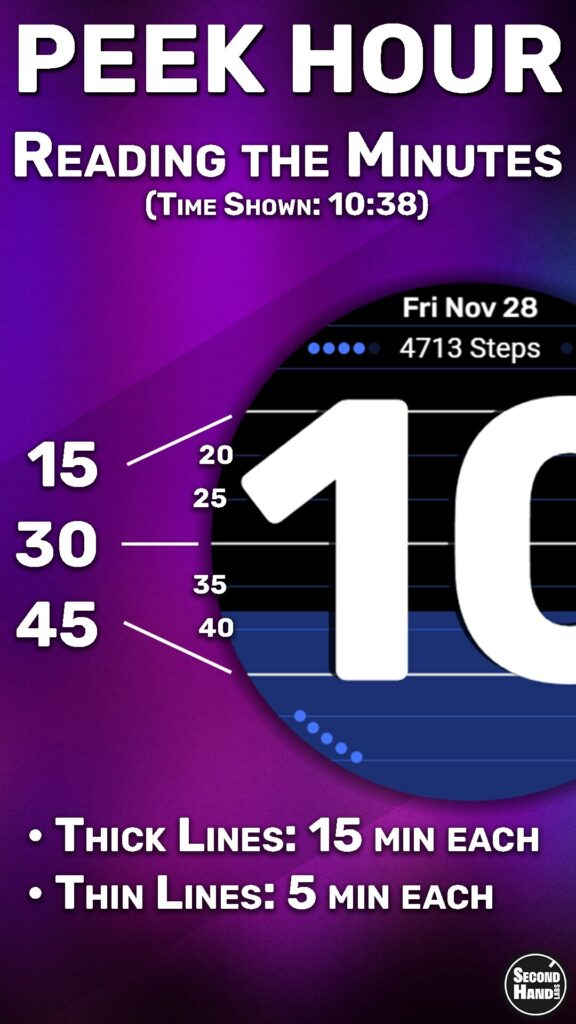
The “Draining” Time Gauge
The colored background acts as a “fuel tank” for the current hour. As the minutes pass, the color drains from top to bottom, turning black.
- Top of the Hour (:00): The screen is full of color.
- 15 Minutes Past (:15): The top 1/4 is black.
- 30 Minutes Past (:30): The screen is half black (top) and half color (bottom).
- 45 Minutes Past (:45): The screen is mostly black; only the bottom 1/4 has color.
Tip: This allows you to gauge the time at a glance without reading numbers—perfect for checking if you are “halfway through” an hour.

The “Peek” (Digital Minutes)
Need the exact minute?
- Tap anywhere on the screen.
- The exact digital minutes will appear inside the large Hour number.
- Tap again to hide them and return to the clean view.
2. Fitness & Health Features
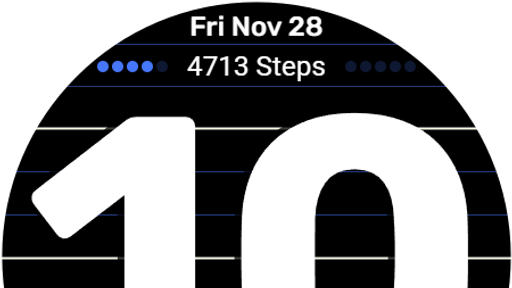
Step Goal Progress
At the top of the screen, you will see a row of 10 dots, 5 on the left, 5 on the right.
- This represents your daily step goal.
- Each dot equals 10% of your goal (e.g., 5 dots = 50%)
- Dots fill from left to right.
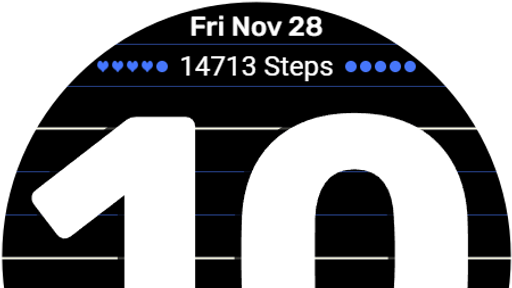
Earning Hearts
What happens when you hit 100%? Keep walking!
- For every 10% you go over your goal, a dot transforms into a Heart.
- Image to the right shows 40% over goal of 10,000.
- Challenge: How many hearts can you collect in a single day?
3. Battery & Date
Battery Monitor

At the bottom of the screen, a second row of 10 dots (5 on each side) monitor your watch battery.
- These dots drain from right to left as your battery power decreases.
- Each dot represents 10% battery life. (9 dots, 90% remaining)
The Date is Always Available
The Date, Day of Week, and Month are permanently displayed at the top of the screen for quick reference.
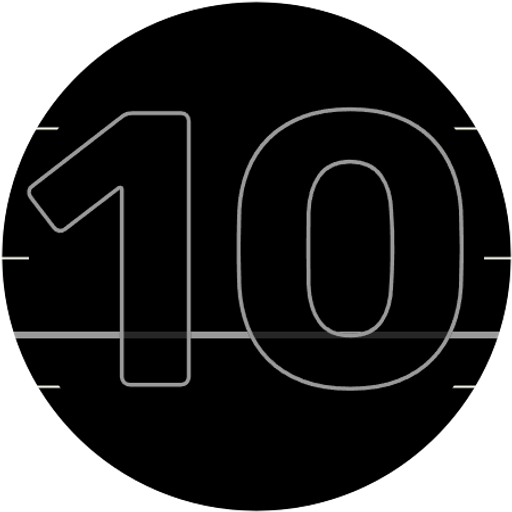
4. Always-On Display (AOD)
Peek Hour is optimized to save battery when your watch is idle. When your screen dims:
- The colored background turns off to save power.
- The Giant Hour remains visible.
- A simplified Minute Line appears along with tick marks at the 15, 30, and 45-minute positions to help identify the current minute.
This mode is perfect for checking the time in a movie theater or dark room without waking up the bright screen.
5. Complications
Peek Hour is designed to be completely clean and minimalist out of the box. However, if you prefer more information at a glance, we’ve included three hidden “Complication” slots that you can enable to customize your watch face with your most important data.
The Layout
- Top Slot (Long Text): Positioned directly above the hour digits. This wide slot is perfect for detailed information like your next Calendar Event, a Next Alarm, or the current World Clock.
- Bottom Left (Icon Only): Positioned below the hour digits. This is your “App Launcher” slot. Set this to your favorite app (like Google Wallet, Spotify, or Messages) for one-tap access from your watch face.
- Bottom Right (Short Text): Positioned below the hour digits. This slot displays a number alongside a helpful icon, making it perfect for context-heavy data like your Heart Rate, the Weather, or your Battery Percentage.
How to Enable and Customize Complications
To add data to these empty slots:
- Long-press the center of your watch screen.
- Tap the Customize button (or the Gear/Pencil Icon).
- Swipe left until you reach the Complications menu.
- Tap any of the highlighted areas to assign your desired data to that slot.
- Complications (Optional Data)
Peek Hour is designed to be completely clean and minimalist out of the box. However, if you prefer more information at a glance, we’ve included three hidden “Complication” slots that you can enable to customize your watch face with your most important data.
Note: Wear OS can be tricky when saving complications. After you select your data (like “Heart Rate”), tap the center of your screen to confirm your choice before pressing the physical watch crown to exit. If you just press the crown, the watch may cancel your edit and leave the slot empty! You can also easily set your complications using the companion wearable app on your phone.
6. Settings & Customization
To customize Peek Hour, long-press the center of your watch screen, then tap the Settings (Gear/Pencil Icon).
Color Themes
Swipe to choose from 8 different color themes.
- Options range from high-contrast visibility modes to softer, muted tones to match your outfit.
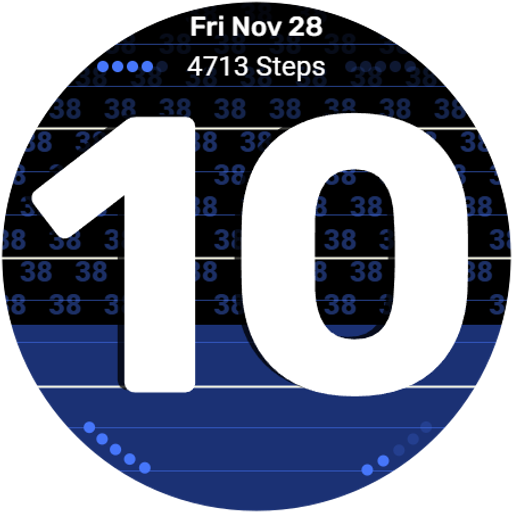
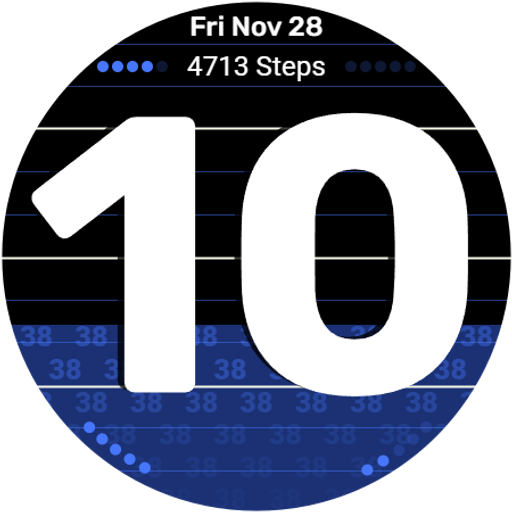
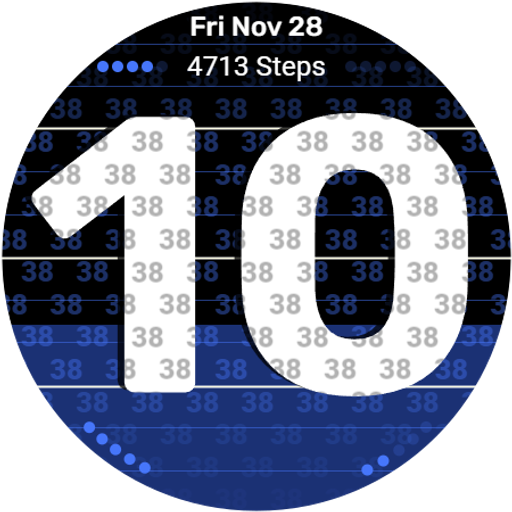
Minute Display Options
There are many way to display the exact minutes.
- Within the Hour: Tap to show/hide.
- Minutes on Top: Minutes stay visible in the black area. (Show/hide in options)
- Minutes on Bottom: Minutes stay visible in the colored area. (Show/hide in options)
- Multiple Combinations: Each option is independently controlled. You can turn them all on if you wish.
7. Troubleshooting
My step counter isn’t working / No hearts appearing.
- Cause: The watch face likely doesn’t have permission to read your sensors.
- Fix: Switch to a different watch face, then switch back to Peek Hour. If asked for “Physical Activity” permissions, be sure to tap Allow.
The screen is too dark.
- Peek Hour relies on your watch’s system brightness. Go to your watch Settings > Display > Brightness to increase the level.
8. Join the Beta!
Peek Hour is currently in beta. To join and get this $1.99 watch face for FREE to keep forever, click here.
9. Behind the Scenes
Go behind-the-scenes with Peek Hour. What was the thought process behind its creation? Why did a Wear OS user turn into a watch face developer? Check out our recent blog posts for more info.
- Free Wear OS Watch Face: Get “Peek Hour” ($1.99) for $0 – Beta Test
- Peek Hour: Bringing “Fuzzy Time” to Wear OS (Now in Beta)
- Using Facer Unlocked My Creativity: Starting Your Wear OS Design Journey
- How my childhood inspired a passion for watches: Part 3
- How my childhood inspired a passion for watches: Part 2